
Hey there,
This article is the result of my research for creating an OSINT (Open Source Intelligence) tool as part of a second-year engineering project at ENSIBS.
To create my tool, I had to delve into Google searches, but not just using Dorks as one might think. There are also parameters to be included in the URL that can enable or disable certain features of Google search. Essentially, all of Google’s little modes (time filters, advanced modes, etc.) can be toggled on or off via certain parameters.
To make this article as short and summarized as possible, I’m going to divide it into two categories: the Dorks and how they work, and the GET parameters and their functionality.
Note: Not all dorks work the same way on all Google TLDs. To ensure a dork works, visit Google.com. As for the language that might bother you, we’ll talk about that in the “GET Parameters” section.
Why create this document, you might ask? There are plenty of them out there, no need to add another! Well… Yes, you are right, but sharing is caring! Right?! So, I’m going to try to bring something new here 🙂
The Dorks First off, not everyone knows what a “dork” is, so here’s a brief definition:
A dork is a keyword, a filter, or a way of arranging a search (Google or otherwise) to refine the results, which are often in the hundreds of thousands for most unfiltered searches.
It’s important to know that all dorks can be combined with each other to further refine searches! You can also use logical words among all the filters (OR [or |], AND [or &]).
Let’s move on to the list and its description along with a few examples:
the continuation is defined in the following way:
search [Number of results found] -> explanation
Text/Word Searches in Pages
fromagère pelée [153 000 results] -> Results including “fromagère” or “pelée” or variations of the words (like “pelee”, “pelés”, etc.).
fromagère + pelée [147 000 results] -> Results including “fromagère” and “pelée” or variations of the words.
fromag* [176 000 results] -> Results including “fromage”, “fromagère”, “fromages”, etc.
Note that this dork is more effective for completing missing words in a sentence, e.g.:
How to * dorks [176 000 results] -> Will give “how to use google dorks” and “how to protect against google dorks.”
"fromagère" -"pelée" [784,000 results] ->* Strict search for “fromagère” without the exact word “pelée”*
"fromagère pelée" [0 results] -> Search for the exact occurrences of the words “fromagère pelée” together.
Well, that covers the basics. I’m sure that 90% of you haven’t learned anything new - for now. That’s normal; we’re now going to move on to words that help filter our pages a bit more.
intitle:fromagère [15,300 results] -> Results including “fromagère” or its variations in an HTML <title></title> tag
intitle:fromag* [5,320 results] -> results including fromag[ère,e,…] in the same HTML <title></title> tag
/!\ differences from the previous section /!\
intitle:"bière pong" [2,250 results] -> results including the exact words “bière” OR “pong” in the title
allintitle:"bière pong" [2,250 results] -> results including the exact words “bière” AND “pong” in the title
inurl:bière [365,000 results] -> Results including “bière” or its variations in the URL
inurl:"bière pong" [627 results] -> results including the exact words “bière” OR “pong” in the URL
allinurl:"bière pong" [627 results] -> results including the exact words “bière” AND “pong” in the URL
inanchor:"elsicarius" [1 result] -> Results including “elsicarius” in the href attribute of a link on the page.
allinanchor:"elsicarius infosec" [0 results] -> results including the exact words “elsicarius” AND “infosec” in the href attribute of a link on the page.
That covers the text processing. Let’s now move on to some lesser-used (wrongly so) dorks.
Misc
Here we’ll place all those that don’t fit neatly into other categories.
It’s frustrating to search for a resource on Google, and when you finally get a Google result with a snippet from the site that interests you, BAM - 404 not found, unknown host, or who knows what else?!
cache:<url> -> Will redirect you directly to the cached version of the site by the Google system. There’s never any CSS, but if it’s the text you’re interested in, it can work (not always, it depends on the page’s robots.txt).
Note that:
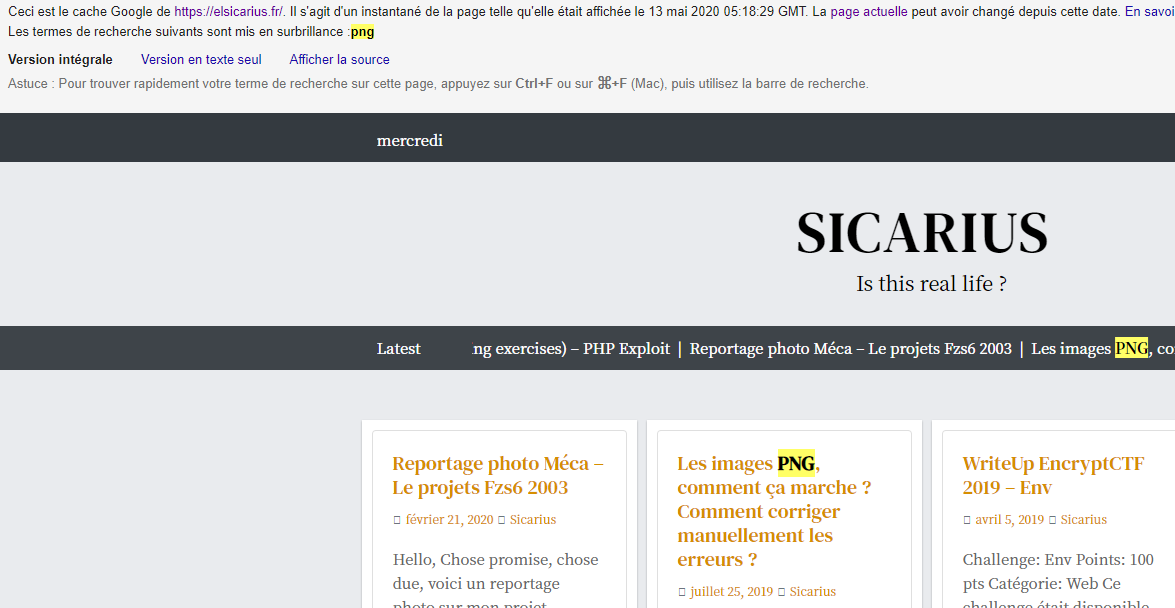
cache:<url> keywords -> will redirect you and highlight the searched keywords!
For example:
Consider the search cache:https://elsicarius.fr PNG and you will be redirected to my site and the letters “PNG” will be highlighted:
site:sousdomaine.domaine.tld -> will filter the results to include (or exclude with -site:) only the site that interests you.
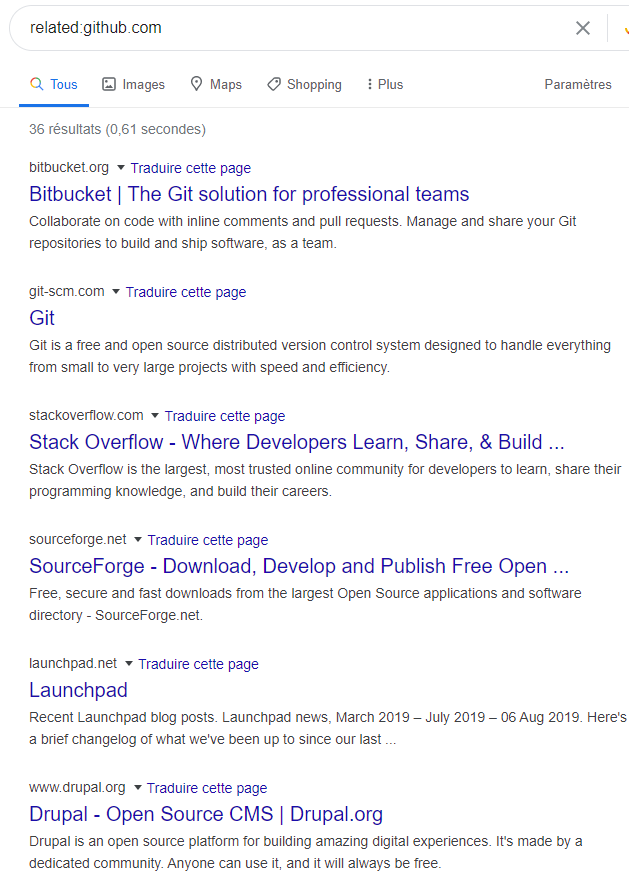
related:domaine.tld -> will give you sites/services that offer the same things as the searched domain.
For example, the search:
related:github.com will yield results such as:
ext:<extension> -> filters search results to only show direct links with the specified extension. This is very useful when you’re looking for academic papers or research on specific topics (it helps filter out advertising sites that ask you to download their adware to read a PDF they don’t actually have).
or
filetype:<extension> -> Same thing
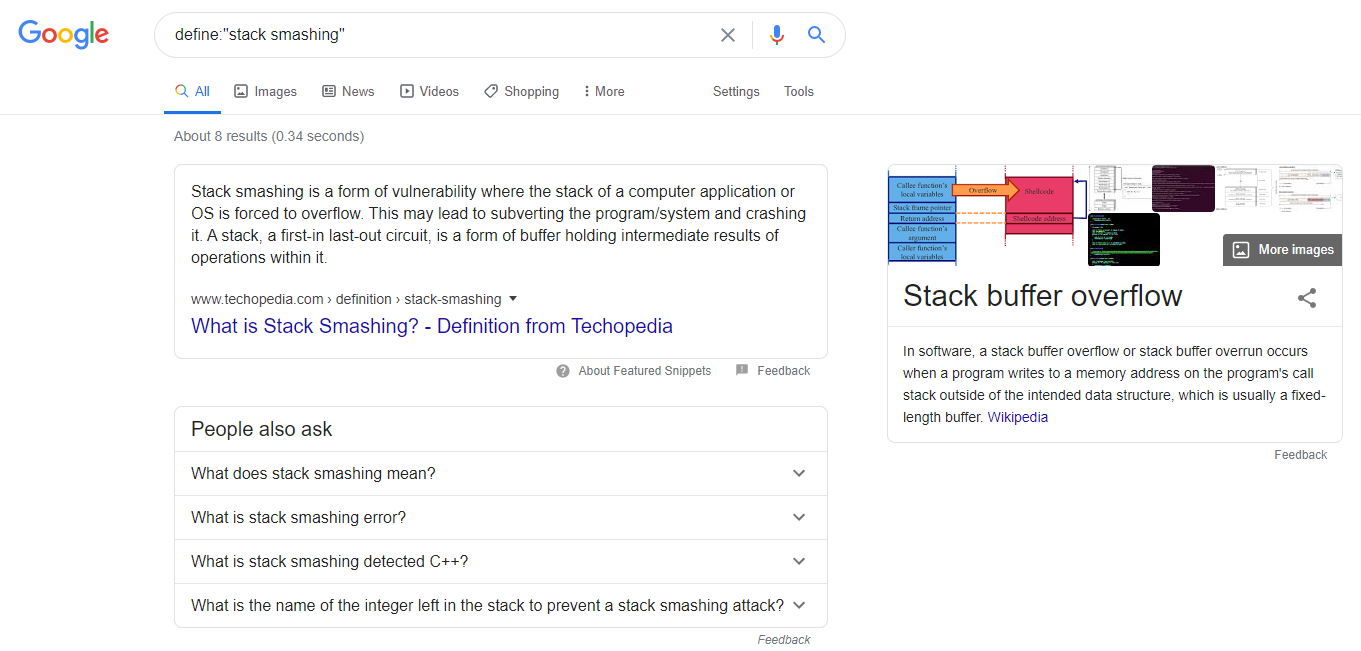
define:<word or term> -> Asks Google to provide the most popular definition of the word or phrase you’re searching for.
Example: I don’t know anything about stack smashing, so I’ll ask Google to define what “stack smashing” is:
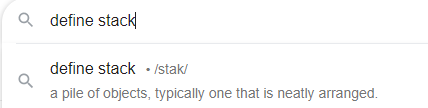
Note that if the search is just one word, Google acts like a dictionary:
So, the full search is:
To wrap up, here’s a Dork that allows you to filter Google News based on the source of the article:
source:<name> -> example:

GET Parameters
When developing my tool, I had to adapt to constraints that hadn’t initially occurred to me: how to filter from a Python program?
I had to delve into the structure of a Google query. Here are my findings on the useful parameters:
A Google query revolves around several parameters that define the language of the results, the country localizing the results, potential filters, etc.
Here’s a standard request to Google:
https://www.google.com/search?hl=fr&q=query&btnG=Google+Search&tbs=0
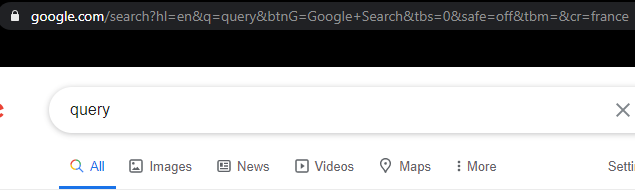
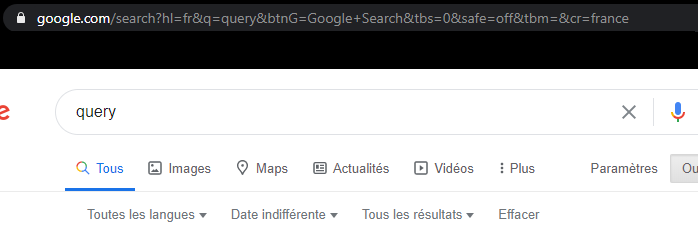
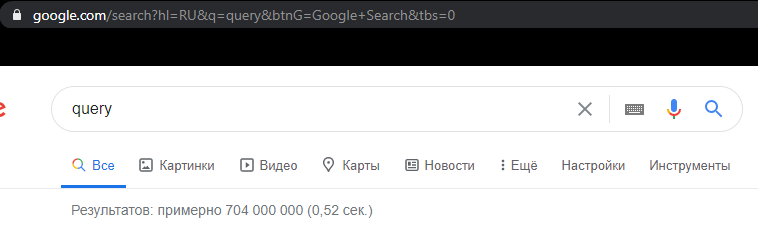
hl -> defines the display language of Google.
Thus, google.com can be displayed in English:
In french:
Or even in russian:
q -> query
This parameter can be a word-by-word search or a dork, as seen previously! Handy for programming 🥰
btnG -> The Google button chosen to perform the search. You can use the value “Google+Search” or whatever you want; it doesn’t really matter.
You can replace it with btnI to perform an “I’m feeling lucky” search.
tbs -> This is Google’s time filter! “0” means “all time”, “qdr:h” means the last hour, “qdr:d” the last 24 hours, “qdr:m” the last month, etc.
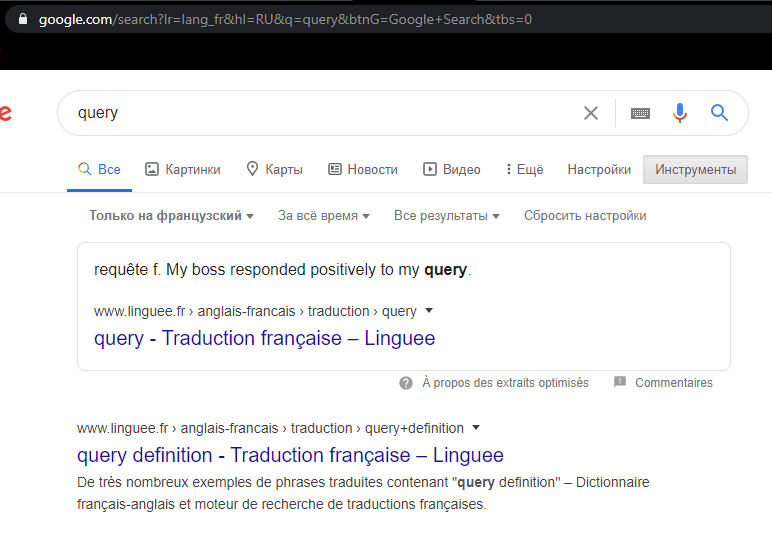
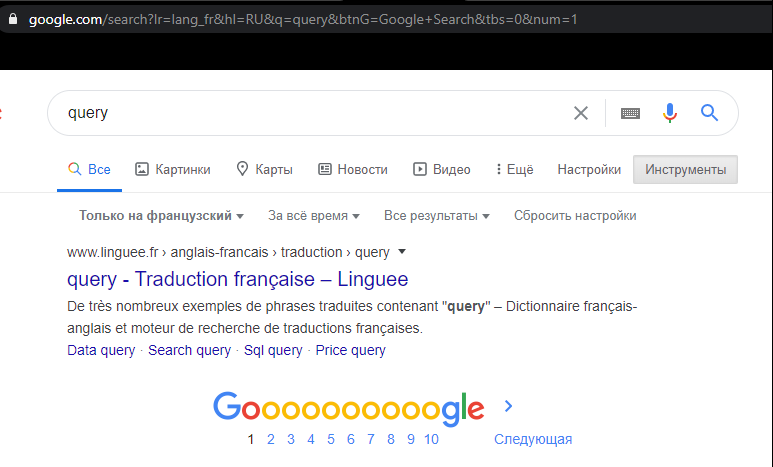
lr -> This filter allows for results in a specific language! Its values are in the form “lr=lang_<language>”, e.g., lr=lang_fr
This allows for some oddities, like a Russian Google only giving French results:
num -> Number of results per page, quite handy for getting a lot of results in a single query return (it avoids spamming -> which could lead to an IP ban).
Safe -> This parameter allows you to enable or disable the display of pornographic content in the search results.
(It’s good for your next NNN challenge 😏)
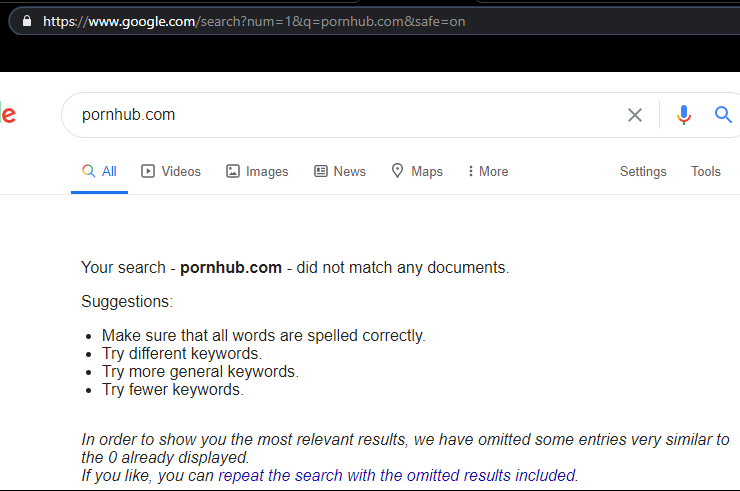
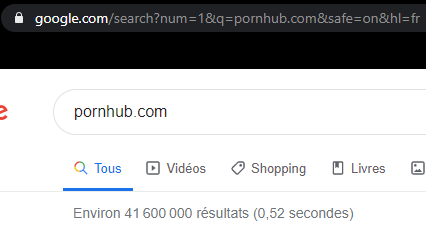
It’s worth noting that when you start combining language settings with the safe mode, Google might not detect adult content as effectively and may start to show results (in the requested language) that would otherwise be filtered out.
filter -> *takes a value of “1” or “0”, with “1” being the default. This parameter allows you to disable the duplicate filters that Google has put in place to limit the number of results (which it deems non-relevant). *
Essentially, it deactivates the message we often see in OSINT:

In the end, I used the Python3 library googlesearch which implements all these functionalities by default in a very simple function called search. This library also allows changing the Google TLD as easily as I change topics on this site.

I hope this article has been helpful to you :)
Cheers, Sicarius